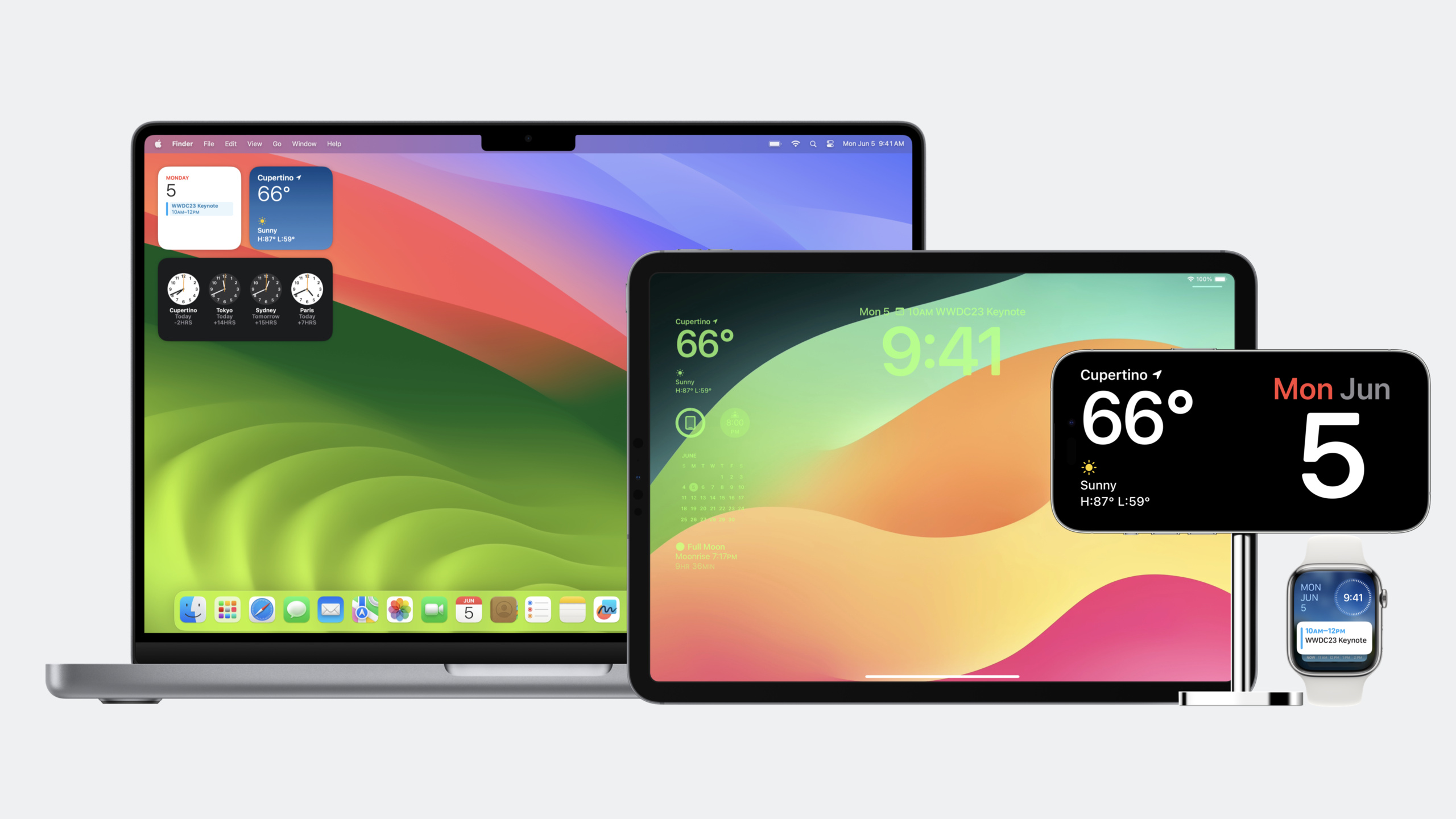
将小组件带到更多新位置
Bring widgets to new places
2023年6月5日
一句话判断
Widget 今年扩展到了四个新位置——Mac 桌面、iPad 锁屏、iPhone StandBy、Apple Watch Smart Stack——通过 containerBackground、widgetContentMargins 和 widgetRenderingMode 三个新 API 就能让 Widget 在所有位置都好看。
这场 Session 讲了什么
Session 介绍了 Widget 在 2023 年的四个新展示位置及适配方法。
四个新位置:
- Mac 桌面:iOS Widget 可以在 Mac 上使用,即使没有 macOS App。
- iPad 锁屏:与 iPhone 锁屏相同的 accessory 系列 Widget。
- iPhone StandBy:横向充电时的全屏 Widget 展示模式。
- Apple Watch Smart Stack:新的 widget 堆叠,用 Digital Crown 翻转。
核心适配 API:
-
containerBackground:可移除的容器背景。系统在某些环境下会自动移除 Widget 背景(如 iPad 锁屏、StandBy)。将背景色放在
containerBackground修饰符中而非直接放在视图上。对纯内容型 Widget(如照片),设置containerBackgroundRemovable = false。 -
widgetContentMargins:自动内容边距。系统根据展示位置调整 Widget 的内边距。可以用
widgetContentMargins环境变量获取当前边距,或用contentMarginsDisabled()禁用。 -
widgetRenderingMode:渲染模式检测。
vibrant模式下 Widget 会被去饱和并着色(iPad 锁屏、StandBy 夜间模式)。用widgetRenderingMode环境变量检测并调整视觉元素。 -
showsWidgetContainerBackground:检测背景是否被移除,据此调整布局(如放大的文字、edge-to-edge 内容)。
值得深挖的点
containerBackground 的”可移除”设计是一个优雅的适配策略。你不需要为每个展示位置写不同的 Widget——只需要把背景放在正确的修饰符中。系统在需要的地方(iPad 锁屏、StandBy)自动移除背景,在其他地方保留。你的布局代码通过 showsWidgetContainerBackground 环境变量检测背景状态,动态调整。
vibrant 渲染模式下的对比度问题容易被忽略。当 Widget 被 vibrant 模式渲染时,颜色会被去饱和并重新着色。这意味着原本对比度足够的 UI 元素可能变得难以辨认。Session 中 Emoji Rangers 的头像在 vibrant 模式下与圆形背景混为一体——需要在这种模式下移除背景装饰。
watchOS 10 的 content margins 替代了 safe area。之前 watchOS Widget 用 ignoresSafeArea 控制内容边界,watchOS 10 改用 content margins。如果你的 Widget 之前使用了 ignoresSafeArea,需要迁移到 contentMarginsDisabled() + 手动 padding 的模式。
代码片段
添加可移除容器背景:
struct EmojiRangerWidgetEntryView: View {
    var entry: Provider.Entry

    var body: some View {
        AvatarView(entry.hero)
            .widgetURL(entry.hero.url)
            .foregroundColor(.white)
        // 将背景放在 containerBackground 中——系统可以自动移除
        .containerBackground(for: .widget) {
            Color.gameBackground
        }
    }
}
动态调整布局(背景移除时放大内容):
struct AvatarView: View {
    @Environment(\.showsWidgetContainerBackground) var showsBackground

    var body: some View {
        if showsBackground {
            // 有背景时:标准布局
            VStack {
                Text(hero.name)
                Text("Level \(hero.level)")
            }
        } else {
            // 无背景时(iPad 锁屏/StandBy):放大布局
            // widgetContentMargins 自动缩小,内容 edge-to-edge
            VStack {
                Text(hero.name)
                    .font(.title)  // 更大的字体
                // 省略次要信息
            }
        }
    }
}
处理 vibrant 渲染模式:
struct AvatarView: View {
    @Environment(\.widgetRenderingMode) var renderingMode

    var body: some View {
        // vibrant 模式下移除背景装饰以保持清晰度
        Circle()
            .fill(renderingMode == .vibrant ? .clear : Color.accentColor)
            .overlay {
                Image(hero.avatar)
            }
    }
}
最佳实践
- 所有 Widget 背景都通过
containerBackground设置,不要直接放在视图层级中。 - 用
showsWidgetContainerBackground检测背景状态,在无背景模式下调整布局(放大关键元素、去掉次要信息)。 - vibrant 渲染模式下检查所有 UI 元素的对比度,移除可能影响清晰度的装饰元素。
- 纯内容型 Widget(如照片 Widget)设置
containerBackgroundRemovable = false。 - watchOS Widget 迁移到 content margins API,不再使用
ignoresSafeArea。 - 用 Xcode Previews 在多种环境中预览 Widget 的外观。
还有什么值得关注
- “Bring widgets to life”(Session 10028)介绍 Widget 的动画和交互新能力。
- “Design widgets for the Smart Stack on Apple Watch” 介绍 Apple Watch Widget 的设计规范。
- “Complications and widgets: Reloaded”(WWDC22)介绍 widget 渲染模式的详细说明。
- iOS Widget 在 Mac 上自动可用(如果 App 支持 Mac),不需要额外的 macOS App。
- StandBy 模式下 Widget 的展示尺寸比锁屏更大,布局优化的收益更明显。