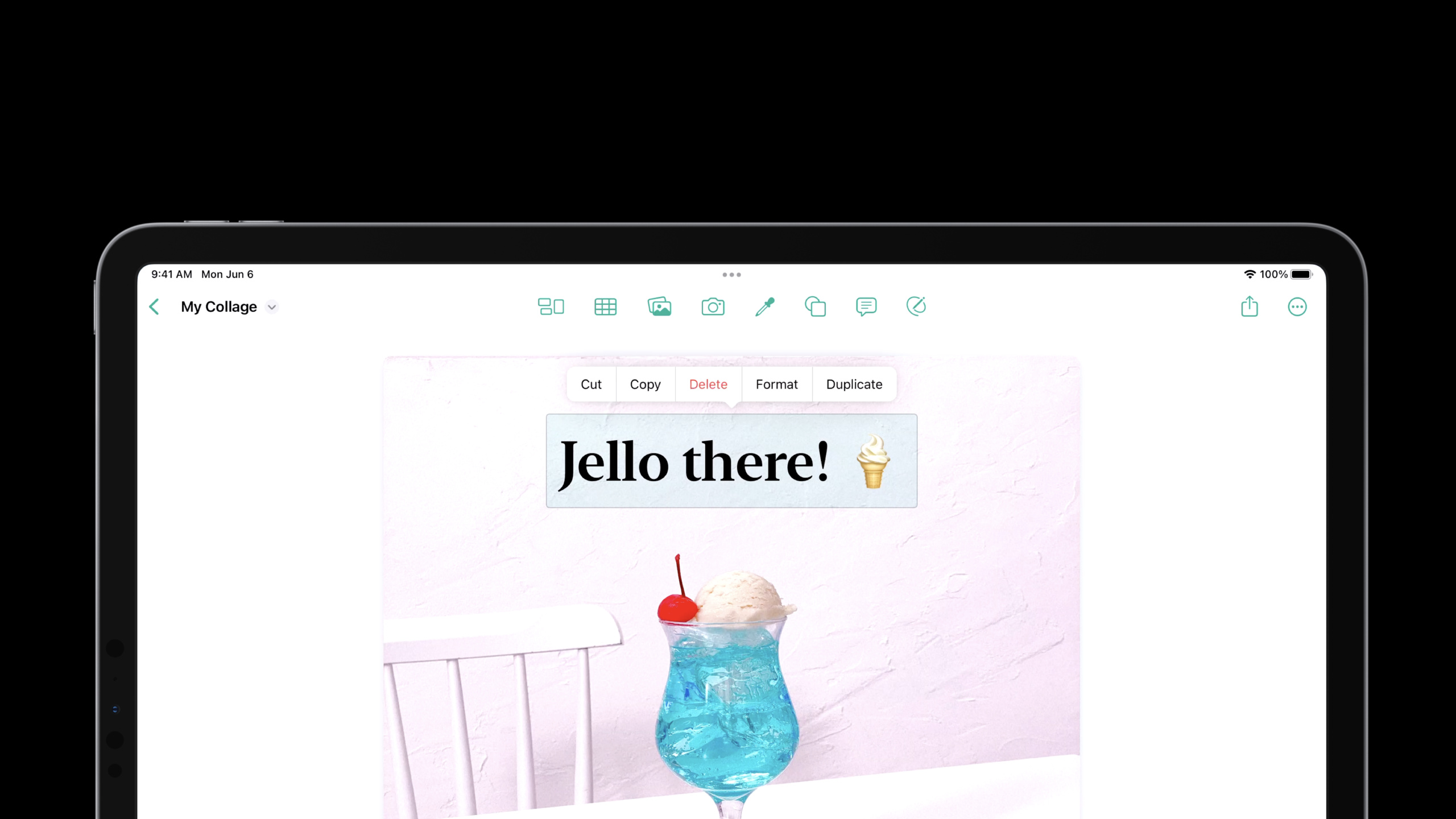
采用桌面级编辑交互
Adopt desktop-class editing interactions
2022年6月6日
一句话判断
iPad 在 iOS 16 终于有了像样的文本编辑体验——但前提是你得主动适配这些新 API,系统不会自动帮你把 app 变成桌面级。
这场 Session 讲了什么
iOS 16 引入了”desktop-class editing interactions”概念,专门为 iPad 上的文本编辑和交互体验做了升级。最核心的变化是 UIEditMenuInteraction 替代了 UIMenuController,新 API 提供了位置感知的编辑菜单,视觉效果和 macOS 的右键菜单更接近。
UIResponder 新增了 editMenuInteraction 相关的支持方法。canPerformEditAction 替代了之前的 canPerformAction(_:withSender:),语义更清晰。配合 UIEditMenuInteraction,编辑菜单的弹出位置会自动锚定到选中文本附近,不需要手动计算坐标。键盘快捷键方面,UIKeyCommand 和 UIResponder.focusing 的改进让 iPad 上的键盘操作更接近桌面体验——你可以为 Finder 风格的编辑操作绑定 Cmd+C、Cmd+V、Cmd+Z 等快捷键,系统会自动把这些操作映射到编辑菜单中。
iPad 上的 pointer interaction 也得到了增强。当用户使用鼠标或触控板时,UIPointerInteraction 会自动为可交互元素提供 hover 效果。Apple 建议所有文本编辑场景都适配这些新交互,让 iPad 应用在外接键盘和触控板的使用场景下体验更接近 Mac。
值得深挖的点
UIEditMenuInteraction 的位置感知机制
旧的 UIMenuController 需要你手动设置 setTargetRect(_:in:) 来定位菜单,而且在滚动后经常出现位置偏移。UIEditMenuInteraction 通过 UIEditMenuConfiguration 的 sourcePoint 参数解决了这个问题。这个 point 是一个全局坐标,系统会根据这个点和当前选中区域自动决定菜单的最佳弹出位置。如果空间不够(比如选中文本在屏幕底部),菜单会自动向上弹出。你还可以通过 editMenuInteraction(_:targetRectFor:) 自定义锚定区域,用于控制菜单相对于选中内容的偏移。
UIResponder 编辑动作的新架构
iOS 16 重构了 UIResponder 的编辑动作链。新的 editingInteractionConfiguration 属性让每个 responder 可以声明自己支持哪些编辑动作。系统会沿着 responder chain 收集这些配置,合并成最终的编辑菜单。这意味着你不需要在 canPerformAction 中写一堆 if-else——只要在 responder 上设置正确的 configuration,系统会自动过滤掉不可用的菜单项。对于自定义 UITextView 子类的场景,这个架构让代码干净了很多。
代码片段
配置 UIEditMenuInteraction
class RichTextView: UITextView {
    private var editMenuInteraction: UIEditMenuInteraction!

    override func didMoveToSuperview() {
        super.didMoveToSuperview()

        // 添加编辑菜单交互
        editMenuInteraction = UIEditMenuInteraction(delegate: self)
        addInteraction(editMenuInteraction)
    }

    // 覆写此方法,在选中文本时自动弹出编辑菜单
    override func editMenu(for textRange: UITextRange, suggestedActions: [UIMenuElement]) -> UIMenu {
        var actions = suggestedActions

        // 添加自定义操作
        let highlight = UIAction(title: "高亮") { [weak self] _ in
            self?.highlightSelectedText()
        }
        actions.append(highlight)

        return UIMenu(children: actions)
    }
}

extension RichTextView: UIEditMenuInteractionDelegate {
    func editMenuInteraction(
        _ interaction: UIEditMenuInteraction,
        menuFor configuration: UIEditMenuConfiguration,
        suggestedActions: [UIMenuElement]
    ) -> UIMenu {
        return UIMenu(children: suggestedActions)
    }
}
为 iPad 配置键盘快捷键
class DocumentViewController: UIViewController {
    override var canBecomeFirstResponder: Bool { true }

    // 使用 UICommand 绑定键盘快捷键
    override func buildMenu(with builder: UIMenuBuilder) {
        super.buildMenu(with: builder)

        // 替换系统编辑菜单中的操作
        let copyCommand = UIKeyCommand(
            title: "拷贝格式",
            action: #selector(copyFormat),
            input: "c",
            modifierFlags: [.command, .shift]
        )

        builder.insertChild(
            UIMenu(title: "", options: .displayInline, children: [copyCommand]),
            atStartOfMenu: .edit
        )
    }

    @objc func copyFormat() {
        // 复制当前选中文本的格式信息
    }
}
UIPointerInteraction 增强 hover 效果
// 为自定义按钮添加触控板 hover 效果
let button = UIButton(type: .system)
let pointerInteraction = UIPointerInteraction(
    style: .highlight(UITargetedPointerStyle(
        targetedPreview: UITargetedPreview(view: button)
    ))
)
button.addInteraction(pointerInteraction)

// 更简单的方式:UITextView 和 UITextField 自动支持 pointer hover
// 只需确保 isEditable = true
最佳实践
适配桌面级编辑交互不需要一次性完成。优先级最高的是替换 UIMenuController 为 UIEditMenuInteraction——因为前者在 iOS 16 上已经标记废弃。如果你的应用已经有自定义文本编辑组件,先把编辑菜单迁移过来,再考虑键盘快捷键的适配。
键盘快捷键的适配建议从 buildMenu(with:) 入手,而不是用 UIResponder.standardEditAction。buildMenu 让你可以精确控制菜单结构,用户看到的菜单和快捷键绑定完全一致。另外,在 iPad 上测试时务必使用外接键盘——模拟器无法完整测试这些交互。
UIEditMenuInteraction 在 iPhone 上同样可用,但交互方式不同:长按触发而非悬停。确保你的代理方法在两种设备上都能正常工作。
还有什么值得关注
UIFindInteraction在 iOS 16 中增强了查找和替换体验,支持UITextSearching协议的自定义视图可以无缝接入系统级查找。UITextSelectionHighlightView让自定义选中文本的高亮样式变得更容易。- iPad 上的
UINavigationItem支持renameDelegate,可以在标题栏直接重命名文档。