键盘布局指南
Your guide to keyboard layout
2021年6月10日
一句话判断
如果你的 App 有自定义键盘或文本输入界面,UITextInputTraits 和 UIKeyInput 的正确配置决定了用户打字的流畅度——大部分 App 在这里都做得不够好。
这场 Session 讲了什么
Session 全面讲解了 iOS 键盘的布局和配置机制。核心是 UITextInputTraits 协议——它告诉系统应该显示什么样的键盘(数字键盘、邮箱键盘、URL 键盘等)、是否自动大写、是否自动纠错、return 键的文字是什么。
iOS 15 新增了一些键盘配置选项:contentType 属性支持更多语义类型(如 .newPassword、.oneTimeCode),帮助系统提供更精准的自动填充建议;submitLabel 参数控制 return 键的文字(如”搜索”、“下一步”、“完成”)。
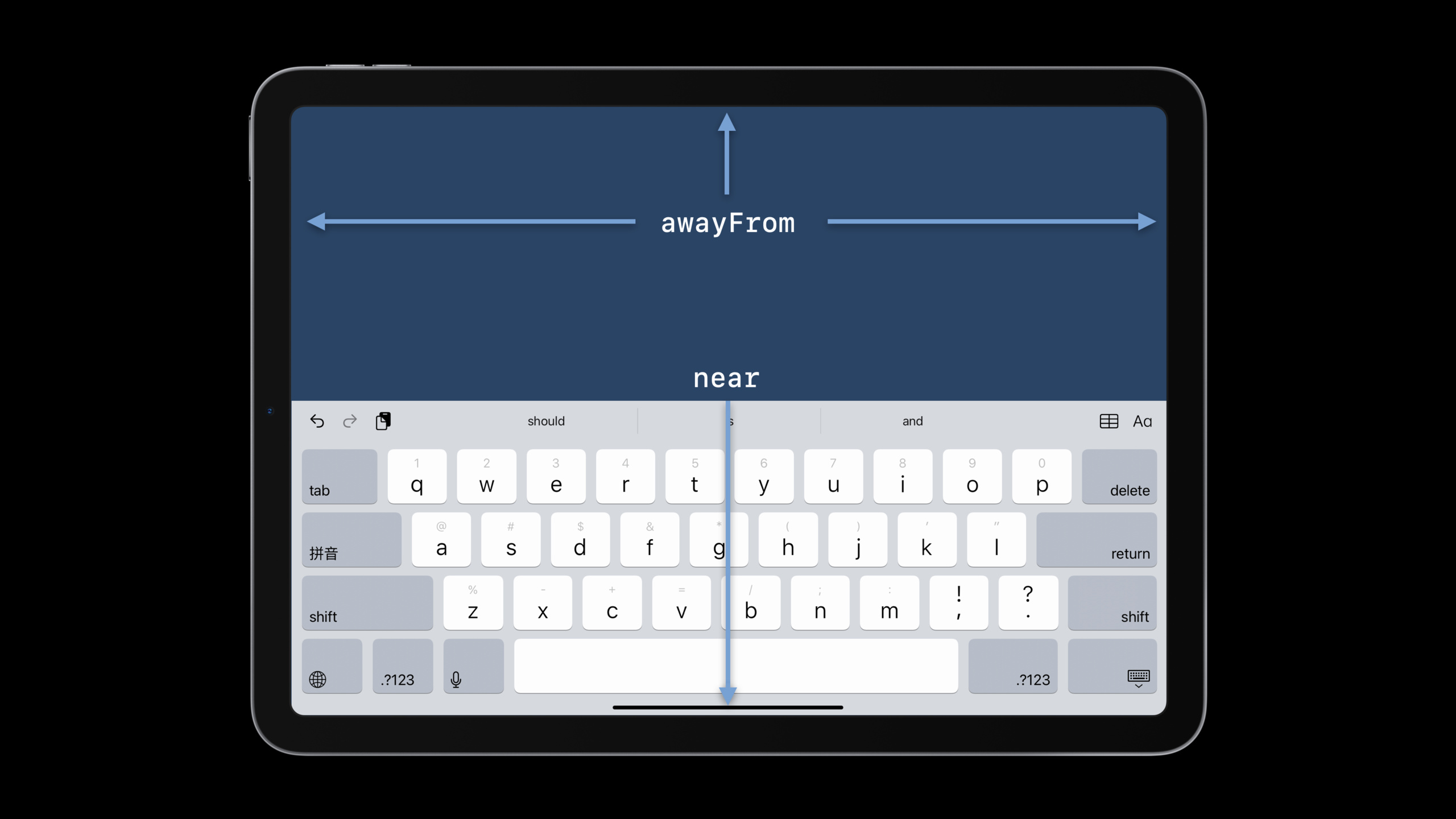
还讲解了如何处理键盘的显示和隐藏:UIKeyboardLayoutGuide 让你在 Auto Layout 中用约束关系处理键盘遮挡问题,不再需要手动监听 UIKeyboardWillShowNotification。
值得深挖的点
textContentType 对自动填充的影响
设置 textContentType = .username 后,系统会在键盘上方显示已保存的用户名和密码建议。设置 .oneTimeCode 后,短信验证码会自动出现在键盘建议栏。这些不是你的 App 做的,是系统的自动填充功能。但前提是你正确设置了 textContentType——如果你用普通的 UITextField 却忘了设置这个属性,用户就得手动输入验证码。
键盘遮挡的约束式解决方案
UIKeyboardLayoutGuide 是 iOS 15 新增的布局指南。它的 bottom anchor 会自动跟随键盘的 top——键盘弹出时 guide 的 bottom 变高,键盘收起时变回底部。你只需要把内容区域的 bottom 约束到这个 guide 的 top,就自动处理了键盘遮挡。比监听通知然后手动改 frame 的老方法优雅得多。
代码片段
配置不同场景的键盘
// 搜索框
let searchField = UITextField()
searchField.keyboardType = .default
searchField.textContentType = .search
searchField.submitLabel = .search  // return 键显示"搜索"
searchField.returnKeyType = .search
searchField.clearButtonMode = .whileEditing

// 邮箱输入
let emailField = UITextField()
emailField.keyboardType = .emailAddress
emailField.textContentType = .emailAddress
emailField.autocapitalizationType = .none
emailField.autocorrectionType = .no
emailField.submitLabel = .next

// 密码输入(支持自动强密码建议)
let passwordField = UITextField()
passwordField.textContentType = .newPassword
passwordField.isSecureTextEntry = true
// 系统会自动建议强密码

// 验证码输入(自动读取短信验证码)
let codeField = UITextField()
codeField.keyboardType = .numberPad
codeField.textContentType = .oneTimeCode
// 收到短信验证码后,键盘上方自动显示验证码
使用 UIKeyboardLayoutGuide 处理遮挡
class ChatViewController: UIViewController {
    let inputBar = UIView()
    let tableView = UITableView()

    override func viewDidLoad() {
        super.viewDidLoad()

        // 使用键盘布局指南
        let keyboardGuide = view.keyboardLayoutGuide

        // 输入栏跟随键盘
        inputBar.translatesAutoresizingMaskIntoConstraints = false
        NSLayoutConstraint.activate([
            inputBar.leadingAnchor.constraint(equalTo: view.leadingAnchor),
            inputBar.trailingAnchor.constraint(equalTo: view.trailingAnchor),
            inputBar.bottomAnchor.constraint(equalTo: keyboardGuide.topAnchor)
        ])

        // 表格填充剩余空间
        tableView.translatesAutoresizingMaskIntoConstraints = false
        NSLayoutConstraint.activate([
            tableView.topAnchor.constraint(equalTo: view.safeAreaLayoutGuide.topAnchor),
            tableView.bottomAnchor.constraint(equalTo: inputBar.topAnchor),
            tableView.leadingAnchor.constraint(equalTo: view.leadingAnchor),
            tableView.trailingAnchor.constraint(equalTo: view.trailingAnchor)
        ])
    }
}
SwiftUI 的键盘配置
struct LoginForm: View {
    @FocusState private var focusedField: Field?

    enum Field {
        case email, password
    }

    var body: some View {
        Form {
            TextField("邮箱", text: $email)
                .textContentType(.emailAddress)
                .keyboardType(.emailAddress)
                .submitLabel(.next)
                .focused($focusedField, equals: .email)

            SecureField("密码", text: $password)
                .textContentType(.password)
                .submitLabel(.go)
                .focused($focusedField, equals: .password)
        }
        .onSubmit {
            switch focusedField {
            case .email: focusedField = .password
            case .password: login()
            default: break
            }
        }
    }
}
最佳实践
表单设计: 为每个输入框设置正确的 keyboardType、textContentType 和 submitLabel。这三个属性配合好了,用户的填写速度能快一倍——不用切键盘、不用手动输入验证码、return 键直接跳到下一个字段。
键盘遮挡: 新项目用 UIKeyboardLayoutGuide 处理键盘遮挡。SwiftUI 项目用 @FocusState 管理焦点。避免手动监听键盘通知——代码复杂且容易出 bug。
还有什么值得关注
- iOS 15 支持在键盘上方的输入助理视图(Input Assistant View)中放置自定义控件。
submitLabel的.join、.route、.continue等新选项让 return 键文字更语义化。- iPad 的硬件键盘连接时,
UIKeyCommand可以注册自定义快捷键。