打造极速列表和集合视图
Make blazing fast lists and collection views
2021年6月10日
一句话判断
UICollectionView 的 cell prefetching 和差异更新(Diffable Data Source)在 iOS 15 中做了性能优化——但真正的性能飞跃来自正确使用 cell registration 和避免在 cellForItemAt 中做布局计算。
这场 Session 讲了什么
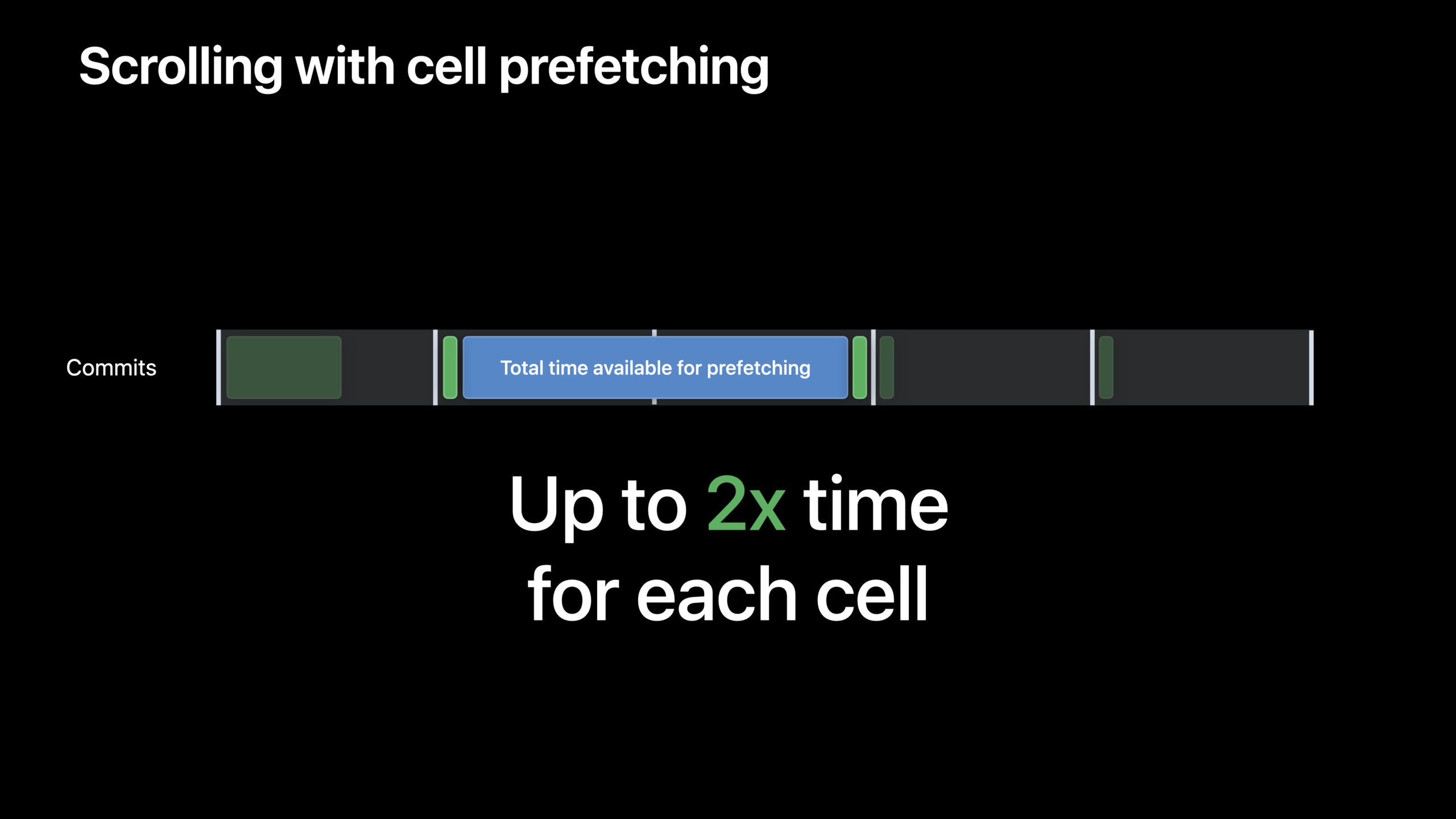
Session 深入讲解了 UICollectionView 和 UITableView 的性能优化技巧。iOS 15 在底层做了大量优化:cell 预取(Prefetching)更智能,Diffable Data Source 的差异计算更快,SwiftUI 的 List 底层重写后性能接近 UIKit。
但 Session 的核心信息是:大部分列表性能问题不是系统慢,而是你的代码慢。常见的性能杀手包括:在 cellForItemAt 中做耗时操作(网络请求、图片解码、复杂布局计算)、不正确的 cell 复用(每次创建新 cell 而不是复用)、过高的 cell 复杂度(一个 cell 包含太多子视图)。
Session 逐个演示了用 Instruments 的 Time Profiler 和 SwiftUI View Debugger 定位列表瓶颈的方法,以及修复后的效果对比。
值得深挖的点
Cell Registration 的正确方式
UICollectionView.CellRegistration 是 iOS 14 引入的 cell 注册方式,但很多项目还在用 registerNib 和 dequeueReusableCell(withReuseIdentifier:for:) 的旧模式。新方式的好处是:cell 的配置逻辑被集中在一个闭包中,系统可以更好地优化复用和预取。配合 UICollectionViewDiffableDataSource,你不再需要写 numberOfItemsInSection 和 cellForItemAt——数据源驱动一切。
图片解码是最大的性能杀手
如果你的列表 cell 包含网络图片,而你在主线程做图片解码和解压缩,列表滚动就会卡顿。Session 展示了正确的做法:在后台线程解码图片(UIImage(data:) 默认是延迟解码的,只有在渲染时才解码),然后缓存解码后的 CGImage。Kingfisher 和 SDWebImage 等库已经帮你做了这件事。
代码片段
使用 Cell Registration 和 Diffable Data Source
// 创建 Cell Registration
let cellRegistration = UICollectionView.CellRegistration<PhotoCell, Photo> { cell, indexPath, photo in
    // 只做轻量的 UI 配置
    cell.titleLabel.text = photo.title
    cell.dateLabel.text = photo.dateFormatted

    // 异步加载图片
    cell.loadImage(from: photo.thumbnailURL)
}

// 创建 Diffable Data Source
let dataSource = UICollectionViewDiffableDataSource<Section, Photo>(
    collectionView: collectionView
) { collectionView, indexPath, photo in
    // 使用 registration 出列 cell
    collectionView.dequeueConfiguredReusableCell(
        using: cellRegistration, for: indexPath, item: photo
    )
}

// 更新数据(差异计算在后台自动完成)
var snapshot = NSDiffableDataSourceSnapshot<Section, Photo>()
snapshot.appendSections([.main])
snapshot.appendItems(photos)
dataSource.apply(snapshot, animatingDifferences: true)
后台解码图片
extension UIImage {
    // 在后台线程预解码图片
    static func predecodedImage(from data: Data) -> UIImage? {
        guard let cgImage = UIImage(data: data)?.cgImage else { return nil }

        // 创建一个与屏幕色彩空间匹配的 bitmap context
        let colorSpace = CGColorSpaceCreateDeviceRGB()
        guard let context = CGContext(
            data: nil,
            width: cgImage.width,
            height: cgImage.height,
            bitsPerComponent: 8,
            bytesPerRow: cgImage.width * 4,
            space: colorSpace,
            bitmapInfo: CGImageAlphaInfo.premultipliedFirst.rawValue
        ) else { return nil }

        // 绘制到 context,触发解码
        context.draw(cgImage, in: CGRect(x: 0, y: 0, width: cgImage.width, height: cgImage.height))

        // 从 context 获取预解码的图片
        guard let decodedImage = context.makeImage() else { return nil }
        return UIImage(cgImage: decodedImage)
    }
}
自适应 Cell 高度的优化
// 使用 self-sizing cell 时,系统会多次计算高度
// 缓存计算结果避免重复计算
class PhotoCell: UICollectionViewCell {
    static var heightCache: [String: CGFloat] = [:]

    func configure(with photo: Photo) {
        // 如果已经计算过高度,直接用缓存
        if let cachedHeight = Self.heightCache[photo.id] {
            contentView.heightAnchor.constraint(equalToConstant: cachedHeight).isActive = true
        }

        // 配置内容...
        titleLabel.text = photo.title
    }

    override func preferredLayoutAttributesFitting(
        _ layoutAttributes: UICollectionViewLayoutAttributes
    ) -> UICollectionViewLayoutAttributes {
        let attrs = super.preferredLayoutAttributesFitting(layoutAttributes)
        // 缓存计算结果
        Self.heightCache[currentPhotoID] = attrs.frame.height
        return attrs
    }
}
最佳实践
性能检查清单: 用 Instruments 的 Time Profiler 跑一遍你的列表滚动。如果在 cellForItemAt 或 configure 闭包中看到耗时超过 1ms 的操作,那就是瓶颈。常见的修复:图片后台解码、预计算 cell 高度、减少 cell 子视图数量。
SwiftUI List: 如果你用 SwiftUI 的 List,iOS 15 的性能已经接近 UIKit。关键是避免在 row 的 body 中做计算——把计算提到视图外部,用 @State 或 @ObservedObject 缓存结果。
还有什么值得关注
UICollectionView.Prefetching在 iOS 15 中更智能,会根据滚动速度预取更多 cell。UICollectionLayoutSectionOrthogonalScrolling的性能在 iOS 15 中改善了。- SwiftUI 的
LazyVStack和LazyHStack在 iOS 15 中的内存使用更优化。