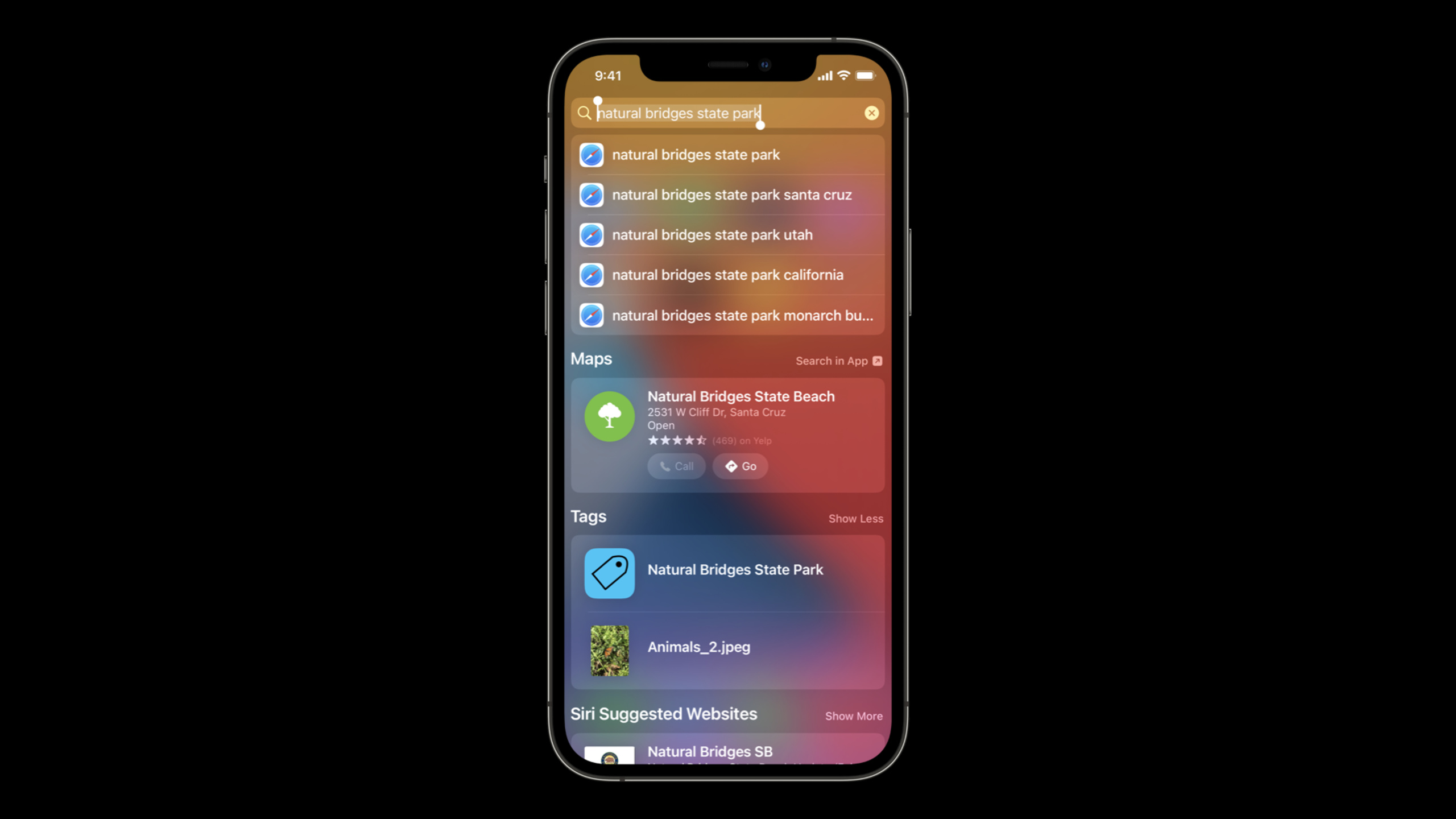
在 Spotlight 中展示 App 数据
Showcase app data in Spotlight
2021年6月11日
一句话判断
Core Spotlight 的索引和搜索能力在 iOS 15 中得到了大幅增强 —— 连续排名(Continuous Ranking)、属性权重配置、搜索建议(Suggestion)和详情视图(Detail View)让 Spotlight 终于能像一个小型的”App 内搜索”入口了。
这场 Session 讲了什么
Session 讲解了 iOS 15 中 Spotlight 搜索集成的重大更新。CSSearchableItem 的新功能包括:
- 排名优化(Ranking):新增
rankingSignal属性,允许开发者指定搜索结果的排名权重。可以根据用户在 app 内的行为(浏览次数、收藏状态、最近使用时间)来影响 Spotlight 中的排序。 - 搜索建议(Spotlight Suggestions):用户在 Spotlight 搜索框输入时,可以在建议列表中直接展示 app 的内容。
- 详情视图(Detail View):Spotlight 搜索结果点击后,可以展示一个自定义的详情视图,而不只是跳转到 app。
- 属性权重(Attribute Weights):为搜索属性设置不同的重要性权重,让标题匹配的排名高于描述匹配。
Session 还讨论了批量索引的最佳实践、索引更新的性能优化、以及如何调试 Spotlight 索引问题。
值得深挖的点
排名信号的持续更新机制。以前 CSSearchableItem 一旦创建,排名就固定了。iOS 15 允许你通过 CSSearchableItemAttributeSet 的 rankingSignal 属性持续更新排名。每次用户在 app 内执行某个操作(如打开一篇文章),你可以重新索引这个 item 并更新 rankingSignal。Spotlight 会在下次搜索时使用最新的排名值。但要注意:更新频率不要超过每分钟一次,否则系统会降频处理你的索引请求。
Spotlight Detail View 的实现。通过 NSUserActivity 的 targetContentIdentifier 和新的 Spotlight 配置,你可以定义一个内联的详情展示视图。用户在 Spotlight 中看到搜索结果时,长按或 3D Touch 会展示详情预览(类似 Live Text 的预览卡片),不需要打开 app。这个功能对内容类 app(新闻、笔记、菜谱)特别有用。
代码片段
创建带排名信号的 Spotlight 索引:
import CoreSpotlight

func indexArticle(_ article: Article) {
    let attributes = CSSearchableItemAttributeSet(contentSetOf: [])
    attributes.title = article.title
    attributes.contentDescription = article.summary
    attributes.thumbnailData = article.thumbnailImageData

    // 设置排名信号:基于文章的浏览量和收藏状态
    let rankingScore = Float(article.viewCount) * 1.0
        + (article.isBookmarked ? 100.0 : 0.0)
        + Float(article.recencyScore)
    attributes.rankingSignal = rankingScore

    // 设置属性权重:标题匹配权重高于描述
    let searchableItem = CSSearchableItem(
        uniqueIdentifier: "article_\(article.id)",
        domainIdentifier: "articles",
        attributeSet: attributes
    )

    CSSearchableIndex.default().indexSearchableItems([searchableItem]) { error in
        if let error = error {
            print("索引失败: \(error)")
        }
    }
}配置搜索建议:
import CoreSpotlight

func donateSearchSuggestion(query: String) {
    // 用户在 app 内搜索时,捐赠搜索建议到 Spotlight
    let attributes = CSSearchableItemAttributeSet(contentSetOf: [])
    attributes.title = "搜索: \(query)"
    attributes.contentDescription = "在 MyApp 中搜索 '\(query)'"

    let item = CSSearchableItem(
        uniqueIdentifier: "search_\(query)",
        domainIdentifier: "suggestions",
        attributeSet: attributes
    )
    // 使用较低的排名信号,让搜索建议排在真实内容之后
    attributes.rankingSignal = 0.1

    CSSearchableIndex.default().indexSearchableItems([item])
}
处理 Spotlight 搜索结果的点击:
import CoreSpotlight

// 在 AppDelegate 或 SceneDelegate 中处理
func scene(_ scene: UIScene, continue userActivity: NSUserActivity) {
    if userActivity.activityType == CSSearchableItemActionType {
        // 获取被点击的搜索结果 ID
        if let uniqueIdentifier = userActivity.userInfo?[
            CSSearchableItemActivityIdentifier
        ] as? String {
            // 跳转到对应的内容页面
            navigateToContent(identifier: uniqueIdentifier)
        }
    }
}
最佳实践
- 批量索引而不是逐条索引。
CSSearchableIndex的indexSearchableItems接受数组参数,每次批量提交 100-500 条比逐条索引效率高 10 倍。 - 定期清理过期索引。用户删除的内容要在 Spotlight 中同步移除,否则搜索到已删除的内容会严重影响信任度。用
deleteSearchableItems(withDomainIdentifiers:)清理。 - rankingSignal 的数值范围要统一。如果你用 0-100 的范围,所有 item 都在这个范围内。混用不同量级(有些 0-1,有些 0-10000)会导致排名完全不可预测。
还有什么值得关注
- Spotlight 现在支持展示 app 的 Widget 内容作为搜索结果的预览。
CSSearchableIndex支持beginBatch()/endBatch()事务模式,确保批量操作的原子性。- 可以用
csquery命令行工具在 macOS 上调试 Spotlight 索引查询。