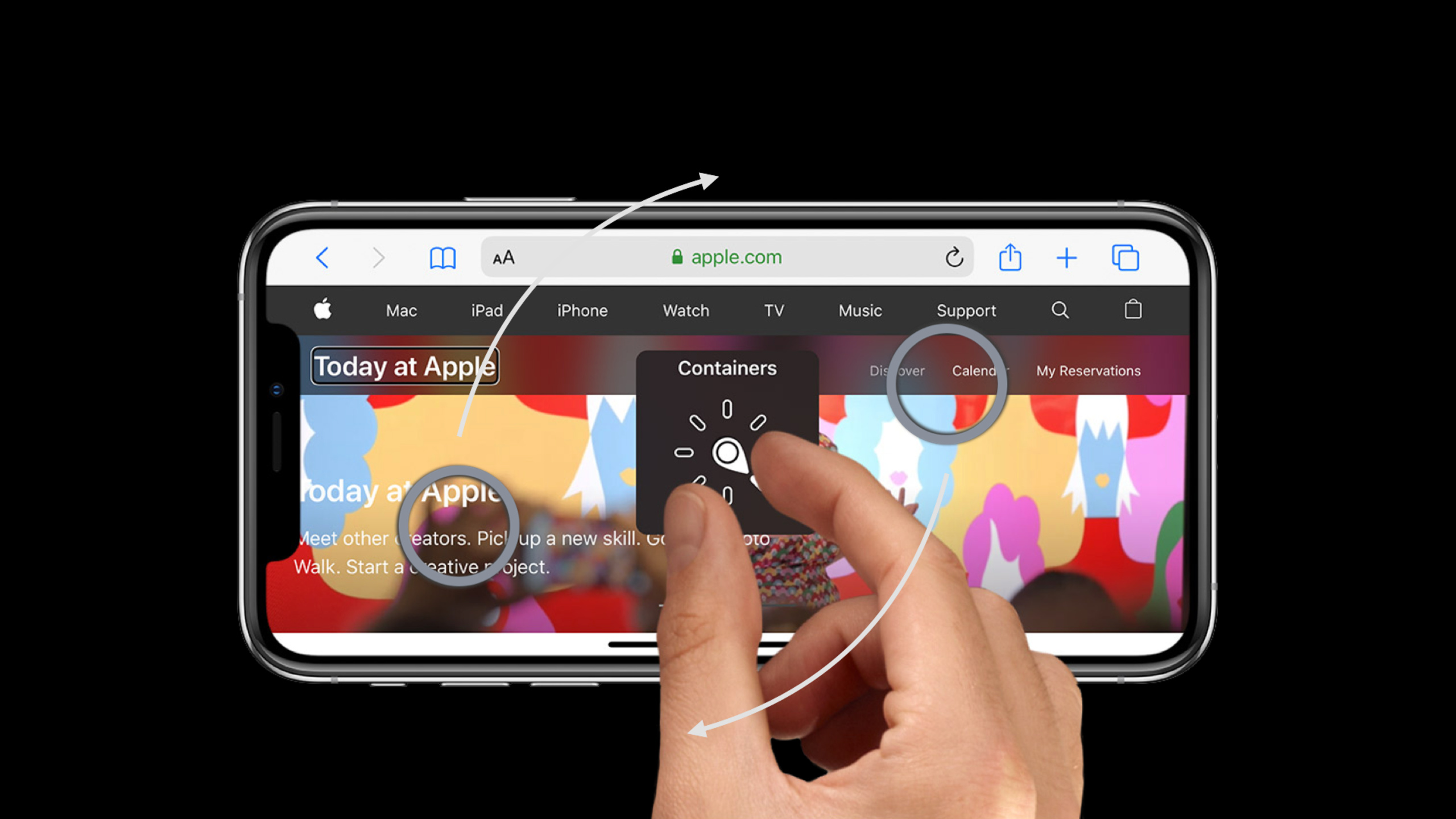
使用自定义 Rotor 提升 VoiceOver 效率
VoiceOver efficiency with custom rotors
2020年6月25日
一句话判断
自定义 Rotor 让 VoiceOver 用户可以按你定义的维度(比如”只看未读消息”、“只看图片”)在内容间快速跳转,这是让你的 App 对视障用户真正可用的关键技术。
这场 Session 讲了什么
VoiceOver 的 Rotor 是一个效率工具——用户通过在屏幕上做”拧”的手势来切换不同的浏览维度。系统默认提供了字符、单词、行、标题等 Rotor 选项。iOS 14 允许开发者创建自定义 Rotor,让用户按照 App 特有的维度来浏览内容。
Session 通过一个新闻阅读 App 的例子来讲解自定义 Rotor 的实现。默认情况下,VoiceOver 用户只能按顺序从上到下阅读所有内容。但通过自定义 Rotor,你可以让用户选择”只读头条新闻”、“只读某类别的文章”、“只读包含图片的文章”等维度。用户选择一个维度后,上下滑动就能在匹配的内容之间跳转,跳过不相关的内容。这对有大量可访问元素的页面特别有价值——VoiceOver 用户不需要逐个听完所有元素才能找到想要的。
值得深挖的点
Rotor 的用户体验
对于 VoiceOver 用户来说,Rotor 操作是这样的:双指在屏幕上做旋转手势,系统会弹出当前可用的 Rotor 选项列表。选择一个选项后,上下滑动就能在对应维度的元素之间跳转。自定义 Rotor 让这个流程更高效——比如在邮件 App 中,用户可以选择”未读”维度,然后只跳转到未读邮件,跳过已读的。
accessibilityCustomActions 与 Rotor 的区别
accessibilityCustomActions 允许你为元素添加自定义操作(上下滑动触发不同操作)。Rotor 则是改变浏览维度(上下滑动跳转到不同元素)。如果你的目的是”在同一元素上做不同操作”,用 Custom Actions。如果你的目的是”在不同元素之间跳转”,用 Rotor。
代码片段
创建自定义 Rotor
场景:为新闻列表创建”头条新闻”和”分类”两个 Rotor 选项。
import UIKit

class NewsListViewController: UIViewController {

    @IBOutlet weak var collectionView: UICollectionView!

    override func viewDidLoad() {
        super.viewDidLoad()
        setupCustomRotors()
    }

    private func setupCustomRotors() {
        // 创建"头条新闻"Rotor
        let headlineRotor = accessibilityCustomRotor(
            name: "头条新闻"
        ) { predicate in
            return self.searchHeadlines(direction: predicate.searchDirection)
        }

        // 创建"图片文章"Rotor
        let imageArticlesRotor = accessibilityCustomRotor(
            name: "包含图片"
        ) { predicate in
            return self.searchImageArticles(direction: predicate.searchDirection)
        }

        // 创建"未读文章"Rotor
        let unreadRotor = accessibilityCustomRotor(
            name: "未读文章"
        ) { predicate in
            return self.searchUnreadArticles(direction: predicate.searchDirection)
        }

        // 设置到页面上
        collectionView.accessibilityCustomRotors = [
            headlineRotor,
            imageArticlesRotor,
            unreadRotor
        ]
    }
}
实现 Rotor 的搜索逻辑
场景:在 CollectionView 中按条件搜索匹配的 Cell。
extension NewsListViewController {

    private func searchHeadlines(direction: UIAccessibilityCustomRotor.SearchDirection) -> UIAccessibilityCustomRotorItemResult? {

        // 获取当前所有可见的 Cell
        let articles = getArticles()
        var currentIndex = currentRotorIndex ?? -1

        // 根据搜索方向决定遍历方向
        let step: Int = direction == .next ? 1 : -1
        var index = currentIndex + step

        // 遍历查找匹配的头条文章
        while index >= 0 && index < articles.count {
            if articles[index].isHeadline {
                // 找到了匹配的文章
                let indexPath = IndexPath(item: index, section: 0)

                if let cell = collectionView.cellForItem(at: indexPath) {
                    // 更新当前 Rotor 索引
                    currentRotorIndex = index

                    // 返回匹配的元素
                    return UIAccessibilityCustomRotorItemResult(
                        targetElement: cell,
                        targetRange: nil
                    )
                }
            }
            index += step
        }

        // 没有找到匹配项
        return nil
    }

    private func searchUnreadArticles(direction: UIAccessibilityCustomRotor.SearchDirection) -> UIAccessibilityCustomRotorItemResult? {
        let articles = getArticles()
        var currentIndex = currentRotorIndex ?? -1
        let step: Int = direction == .next ? 1 : -1
        var index = currentIndex + step

        while index >= 0 && index < articles.count {
            if !articles[index].isRead {
                let indexPath = IndexPath(item: index, section: 0)
                if let cell = collectionView.cellForItem(at: indexPath) {
                    currentRotorIndex = index
                    return UIAccessibilityCustomRotorItemResult(
                        targetElement: cell,
                        targetRange: nil
                    )
                }
            }
            index += step
        }
        return nil
    }

    private var currentRotorIndex: Int? {
        get { objc_getAssociatedObject(self, &AssociatedKeys.rotorIndex) as? Int }
        set { objc_setAssociatedObject(self, &AssociatedKeys.rotorIndex, newValue, .OBJC_ASSOCIATION_RETAIN) }
    }
}

private struct AssociatedKeys {
    nonisolated(unsafe) static var rotorIndex = "rotorIndex"
}
为 UITableView 配置 Rotor
场景:在邮件列表中按发件人过滤。
class MailListViewController: UIViewController {

    @IBOutlet weak var tableView: UITableView!

    override func viewDidLoad() {
        super.viewDidLoad()
        setupSenderRotor()
    }

    private func setupSenderRotor() {
        let senderRotor = UIAccessibilityCustomRotor(name: "按发件人浏览") { predicate in

            let mails = self.getDisplayedMails()
            let currentCell = predicate.currentItem.targetElement as? UITableViewCell
            let currentIndex = currentCell.flatMap { self.tableView.indexPath(for: $0)?.row } ?? -1

            let step = predicate.searchDirection == .next ? 1 : -1
            var index = currentIndex + step

            while index >= 0 && index < mails.count {
                let indexPath = IndexPath(row: index, section: 0)
                if let cell = self.tableView.cellForRow(at: indexPath) {
                    return UIAccessibilityCustomRotorItemResult(
                        targetElement: cell,
                        targetRange: nil
                    )
                }
                index += step
            }
            return nil
        }

        tableView.accessibilityCustomRotors = [senderRotor]
    }
}
动态更新 Rotor 选项
场景:根据当前页面的内容动态调整 Rotor 选项。
class DynamicRotorViewController: UIViewController {

    private var hasImages: Bool = false
    private var hasLinks: Bool = false

    func updateRotorOptions() {
        var rotors: [UIAccessibilityCustomRotor] = []

        // 只在有图片时添加"图片"Rotor
        if hasImages {
            let imageRotor = UIAccessibilityCustomRotor(name: "图片") { predicate in
                return self.searchImages(direction: predicate.searchDirection)
            }
            rotors.append(imageRotor)
        }

        // 只在有链接时添加"链接"Rotor
        if hasLinks {
            let linkRotor = UIAccessibilityCustomRotor(name: "链接") { predicate in
                return self.searchLinks(direction: predicate.searchDirection)
            }
            rotors.append(linkRotor)
        }

        view.accessibilityCustomRotors = rotors
    }

    // 当内容变化时更新
    func contentDidChange(hasImages: Bool, hasLinks: Bool) {
        self.hasImages = hasImages
        self.hasLinks = hasLinks
        updateRotorOptions()

        // 通知 VoiceOver 刷新
        UIAccessibility.post(notification: .layoutChanged, argument: nil)
    }
}
最佳实践
已有项目:为内容密集的页面添加自定义 Rotor。优先处理列表页(新闻列表、邮件列表、消息列表)——这些页面元素最多,VoiceOver 用户最需要快速跳转。让产品设计团队参与 Rotor 维度的定义,选择最有用户价值的过滤维度。
新项目:在无障碍设计中把自定义 Rotor 作为标配。每个有列表或多个同类元素的页面都应该有对应的 Rotor。在 QA 中加入 VoiceOver 测试——打开 VoiceOver,用 Rotor 在你的 App 中导航一遍核心流程。
还有什么值得关注
- 自定义 Rotor 也支持在 UITextView 中按文本范围跳转(targetRange 参数)。
- 系统自带的 Rotor(如标题、链接)在大多数情况下自动可用,不需要额外配置。
- VoiceOver 用户可以通过”设置 > 辅助功能 > VoiceOver > Rotor”来管理显示哪些 Rotor 选项。