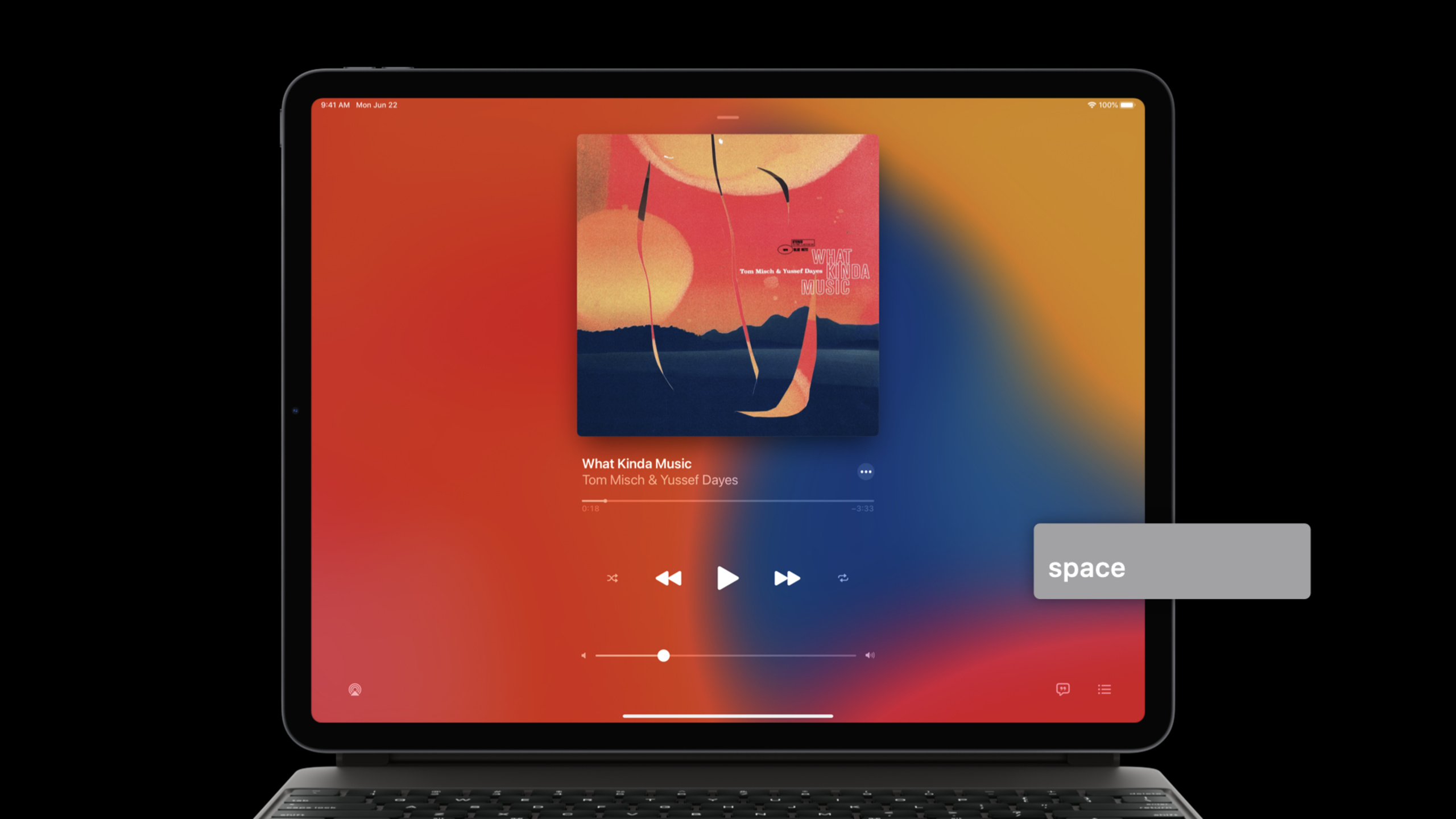
在 App 中支持硬件键盘
Support hardware keyboards in your app
2020年6月23日
一句话判断
iPad + Magic Keyboard 的用户量正在快速增长,如果你的 iPad App 只支持触摸操作而忽略了键盘快捷键,你就错过了一批高生产力用户。这个 Session 教你如何用 UIKeyCommand 和新的 Focus 系统让 App 真正支持键盘操作。
这场 Session 讲了什么
随着 iPad Pro + Magic Keyboard 的普及,iPad App 对硬件键盘的支持不再是可选项。Session 从基础开始,讲解了如何通过 UIKeyCommand 注册键盘快捷键、如何在 Xcode 12 中调试键盘事件、以及 iOS 14 中新增的 Focus 系统如何改善键盘导航体验。
重点内容包括:UIKeyCommand 的创建和注册方式,包括修饰键组合和多个快捷键绑定到同一个 Action;Xcode 12 中新的 Key Bindings 调试面板,可以实时查看键盘事件的传递链路;iOS 14 的 UIFocusSystem 改进,让键盘 Tab 键导航更加流畅;以及如何在 iPadOS 的菜单栏(Menu Bar)中正确展示快捷键提示。
值得深挖的点
UIKeyCommand 的最佳实践
UIKeyCommand 看起来简单——注册一个键和一个 Action。但实际使用中有不少细节。首先,你应该使用 UIKeyCommand 的 title 属性来提供描述文本,这个文本会出现在 iPadOS 的菜单栏快捷键提示中。其次,使用 wantsPriorityOverSystemBehavior 属性来覆盖系统默认的快捷键(谨慎使用)。最后,使用 UIKeyModifierFlags 组合修饰键时,Command 键应该是首选,因为 Option 键可能被输入法占用。
Focus 系统与键盘导航
iOS 14 改进了 UIFocusSystem,使得 Tab 键导航更加自然。用户可以按 Tab 键在可交互元素之间移动焦点,按 Enter 键激活焦点元素。你的自定义视图需要正确实现 UIFocusItem 协议,包括 canBecomeFocused 属性和 didUpdateFocus 回调,才能参与 Tab 键导航。
代码片段
注册基本的键盘快捷键
场景:为文档编辑 App 注册常用快捷键。
import UIKit

class DocumentViewController: UIViewController {

    override var keyCommands: [UIKeyCommand]? {
        return [
            // Command + N:新建文档
            UIKeyCommand(
                title: "新建文档",
                action: #selector(newDocument),
                input: "n",
                modifierFlags: .command,
                discoverabilityTitle: "新建文档"
            ),

            // Command + S:保存
            UIKeyCommand(
                title: "保存",
                action: #selector(saveDocument),
                input: "s",
                modifierFlags: .command,
                discoverabilityTitle: "保存"
            ),

            // Command + Shift + S:另存为
            UIKeyCommand(
                title: "另存为",
                action: #selector(saveAs),
                input: "s",
                modifierFlags: [.command, .shift],
                discoverabilityTitle: "另存为"
            ),

            // Command + F:搜索
            UIKeyCommand(
                title: "搜索",
                action: #selector(showSearch),
                input: "f",
                modifierFlags: .command
            ),

            // Command + ,:打开设置
            UIKeyCommand(
                title: "设置",
                action: #selector(openSettings),
                input: ",",
                modifierFlags: .command,
                discoverabilityTitle: "设置"
            )
        ]
    }

    @objc func newDocument() { /* 创建新文档 */ }
    @objc func saveDocument() { /* 保存当前文档 */ }
    @objc func saveAs() { /* 另存为 */ }
    @objc func showSearch() { /* 显示搜索栏 */ }
    @objc func openSettings() { /* 打开设置页面 */ }
}
创建带分组的快捷键
场景:为编辑功能创建快捷键组,显示在菜单栏中。
class EditorViewController: UIViewController {

    override var keyCommands: [UIKeyCommand]? {
        // 使用 UIKeyCommand 的 menu 属性进行分组(iOS 14 新增)
        let editCommands = [
            UIKeyCommand(title: "撤销", action: #selector(undo),
                        input: "z", modifierFlags: .command),
            UIKeyCommand(title: "重做", action: #selector(redo),
                        input: "z", modifierFlags: [.command, .shift]),
            UIKeyCommand(title: "剪切", action: #selector(cut),
                        input: "x", modifierFlags: .command),
            UIKeyCommand(title: "复制", action: #selector(copy),
                        input: "c", modifierFlags: .command),
            UIKeyCommand(title: "粘贴", action: #selector(paste),
                        input: "v", modifierFlags: .command),
            UIKeyCommand(title: "全选", action: #selector(selectAll),
                        input: "a", modifierFlags: .command)
        ]

        // 为每个命令设置所属的菜单分组
        for command in editCommands {
            command.wantsPriorityOverSystemBehavior = false
        }

        return editCommands
    }

    @objc func undo() { /* 撤销 */ }
    @objc func redo() { /* 重做 */ }
    @objc func cut() { /* 剪切 */ }
    @objc func copy() { /* 复制 */ }
    @objc func paste() { /* 粘贴 */ }
    @objc func selectAll() { /* 全选 */ }
}
自定义 Focus 行为
场景:让自定义按钮支持键盘 Tab 导航。
class CustomButton: UIButton {

    override var canBecomeFocused: Bool {
        return true  // 允许接收焦点
    }

    override func didUpdateFocus(in context: UIFocusUpdateContext) {
        super.didUpdateFocus(in: context)

        if context.nextFocusedItem === self {
            // 获得焦点:显示焦点环
            layer.borderWidth = 2
            layer.borderColor = UIColor.systemBlue.cgColor
            layer.cornerRadius = 4
        } else {
            // 失去焦点:移除焦点环
            layer.borderWidth = 0
        }
    }

    // 处理键盘激活(Enter 键)
    override func pressesBegan(_ presses: Set<UIPress>, with event: UIPressesEvent?) {
        for press in presses {
            if press.key?.keyCode == .keyboardReturnOrEnter {
                // Enter 键被按下,执行按钮的 Action
                sendActions(for: .primaryActionTriggered)
            }
        }
        super.pressesBegan(presses, with: event)
    }
}
动态快捷键(根据上下文变化)
场景:根据当前选中内容显示不同的快捷键。
class CanvasViewController: UIViewController {

    private var hasSelection: Bool = false

    override var keyCommands: [UIKeyCommand]? {
        var commands: [UIKeyCommand] = [
            UIKeyCommand(title: "新建画布", action: #selector(newCanvas),
                        input: "n", modifierFlags: .command)
        ]

        // 只在有选中内容时显示删除快捷键
        if hasSelection {
            commands.append(
                UIKeyCommand(title: "删除选中", action: #selector(deleteSelection),
                            input: .delete, modifierFlags: .command)
            )
        }

        return commands
    }

    @objc func newCanvas() { /* 新建画布 */ }
    @objc func deleteSelection() { /* 删除选中元素 */ }

    func didSelectItem() {
        hasSelection = true
        // 通知系统更新快捷键列表
        setNeedsUpdateOfKeyCommands()
    }

    func didDeselectAll() {
        hasSelection = false
        setNeedsUpdateOfKeyCommands()
    }
}
最佳实践
已有项目:为最常用的 5-10 个操作添加键盘快捷键。优先覆盖文件操作(新建/保存/搜索)和编辑操作(撤销/重做/复制/粘贴)。使用 setNeedsUpdateOfKeyCommands() 在上下文变化时动态更新快捷键列表。在 iPad 上用外接键盘测试所有核心操作流程。
新项目:在 UI 设计阶段就考虑键盘操作路径。为每个主要操作定义快捷键,并在按钮旁边显示快捷键提示(UIKeyCommand.title 会自动出现在菜单栏中)。实现完整的 Tab 键导航路径,确保用户可以纯键盘完成所有核心操作。
还有什么值得关注
- iPadOS 14 的菜单栏会自动展示你的快捷键,按照标准的菜单分组(文件、编辑、视图等)。
UIKeyCommand.wantsPriorityOverSystemBehavior = true可以覆盖系统快捷键,但要谨慎使用。- 使用
pressesBegan(_:with:)来处理没有修饰键的单键事件。